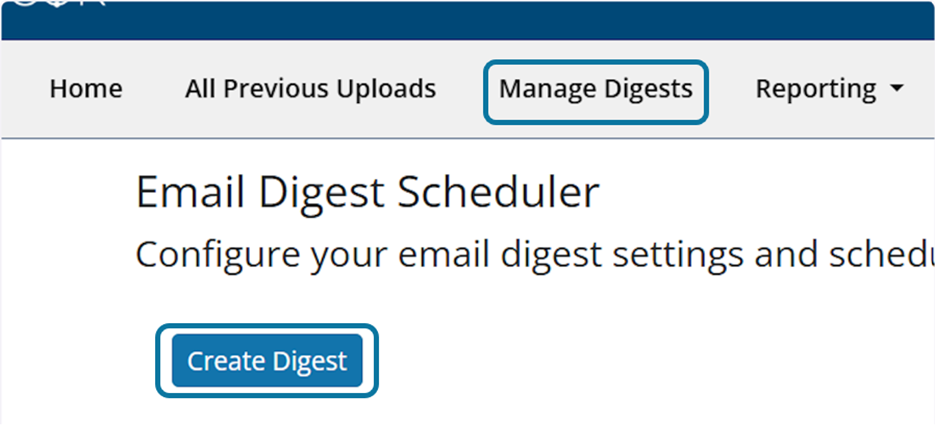
Create Digest:
- Navigate to the Manage Digests tab and select Create Digest.
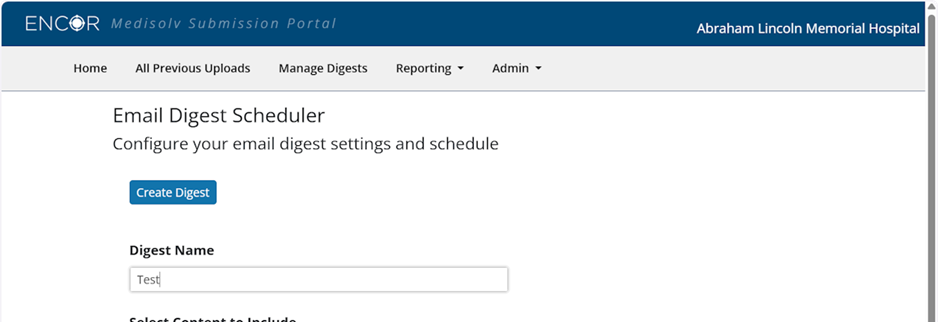
- Enter your Digest Name
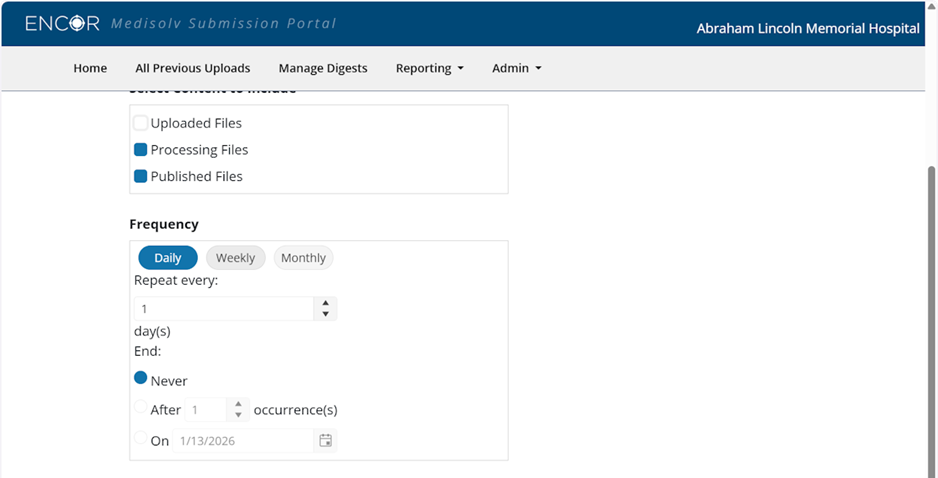
- Select Content: All contents are selected by default, click in the check box to unselect

- Configure Frequency
-
Select Organizations: All organizations associated with the user will be selected by default.
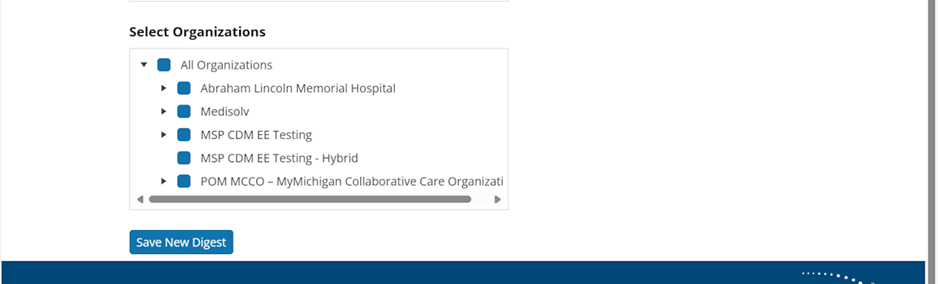
- Click in the check box to un-select. Click on the arrow to see Sub-Organizations.
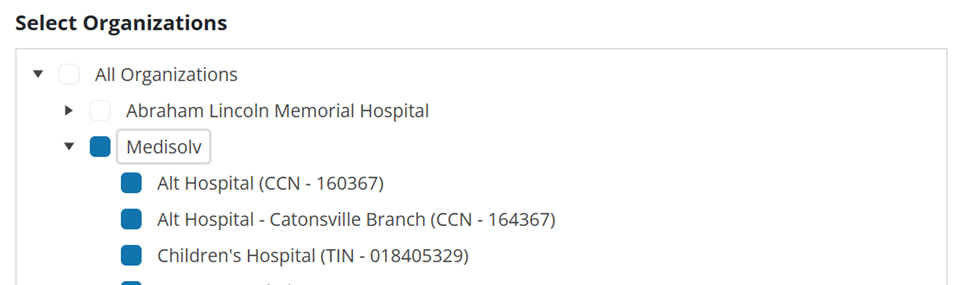
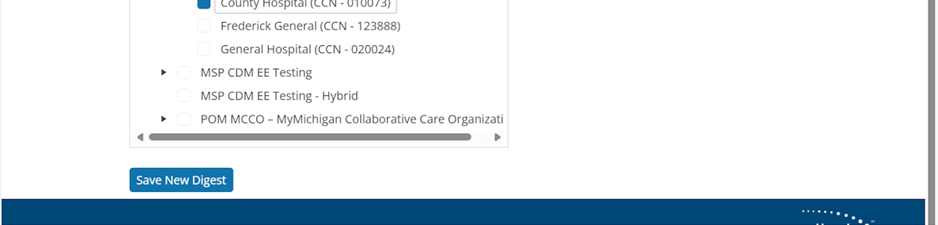
- Save New Digest
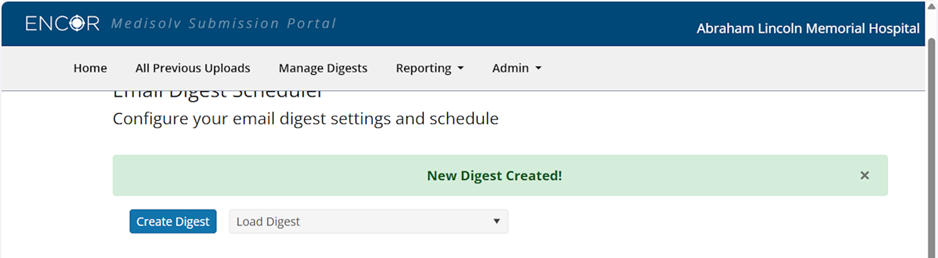
- See banner: New Digest Created
Update Digest
- Select existing digest from the Load Digest dropdown menu
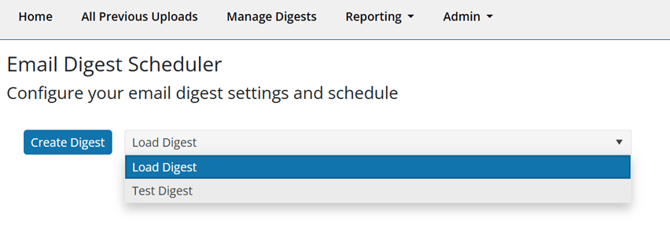
-
Update Content, Frequency and/or Organization selections. Select Update Digest.

- See banner: Digest Updated!
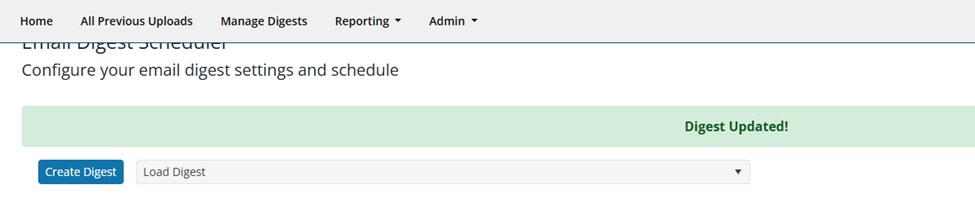
Delete Digest
- Select existing digest from the Load Digest dropdown menu
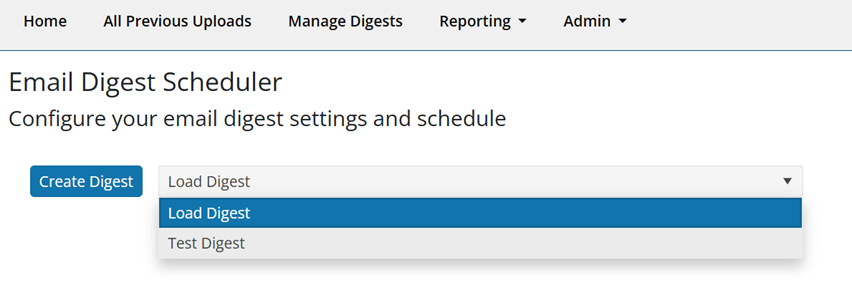
- Scroll to the bottom and select Delete Digest

- Click Delete to complete the action, or click Cancel to return to the Digest in update mode.
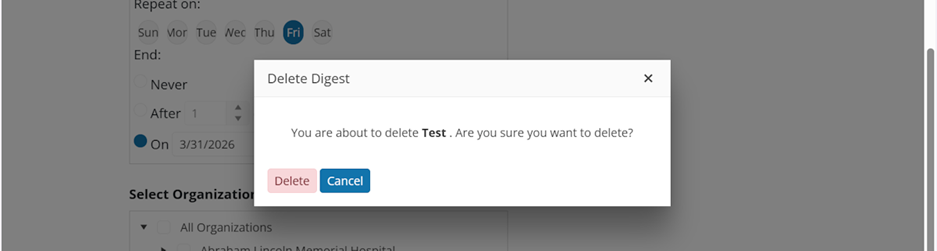
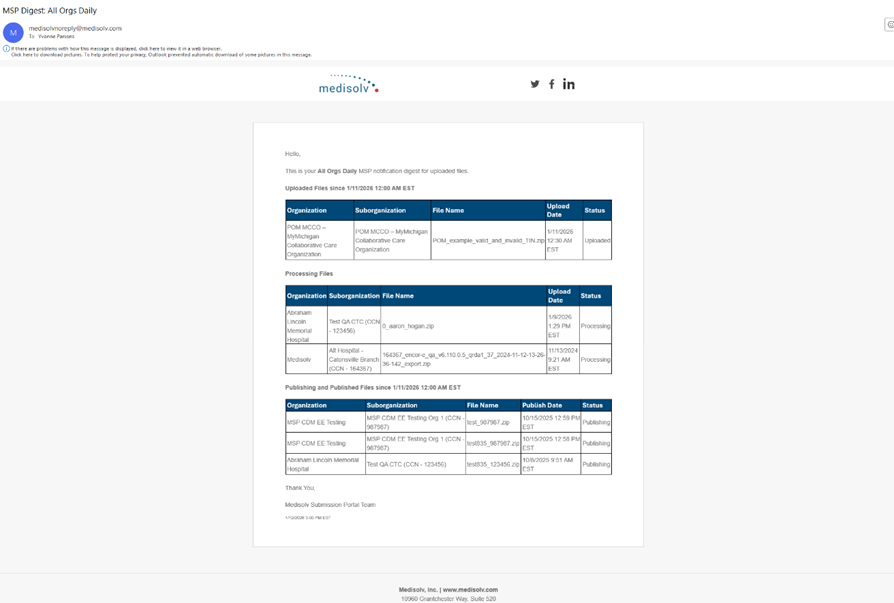
Digest Example
Email title: MSP Digest: [Name]
Content section will be blank if no files meet the criteria for that section at the time the digest is sent.